How to Set Up Combat Master Cheats on Your Gaming PC
Step-by-step Combat Master cheats setup: checkout, loader, DMA, in-game binds, ESP/aimbot tuning, and first-match checklist.
Learning combat master cheats setup once saves hours of blind toggling in Deathmatch. This checklist walks from purchase through cloud DMA readiness, in-game binds, and sanity tests on Steam.
Before you install
Complete checkout at the official path, download the loader to a dedicated folder, and read the DMA guide if HVCI, Core Isolation, TPM, and Secure Boot are enabled—which is common on Windows 11 gaming rigs.
Hardware and firmware checklist
- Enable TPM and Secure Boot in UEFI if you plan to keep defaults on
- Finish cloud DMA vendor steps before first inject
- Update GPU drivers to avoid overlay glitches on Hangar
- Use a wired connection for long Combat Zone sessions
Loader and game launch
Authenticate the loader, apply the documented attach method, then open Combat Master from Steam. At the main menu, open settings to confirm resolution and fullscreen mode match the guide. Bind ESP and aimbot keys to keys you can reach while sliding—thumb mouse buttons work well.
Tune features per mode
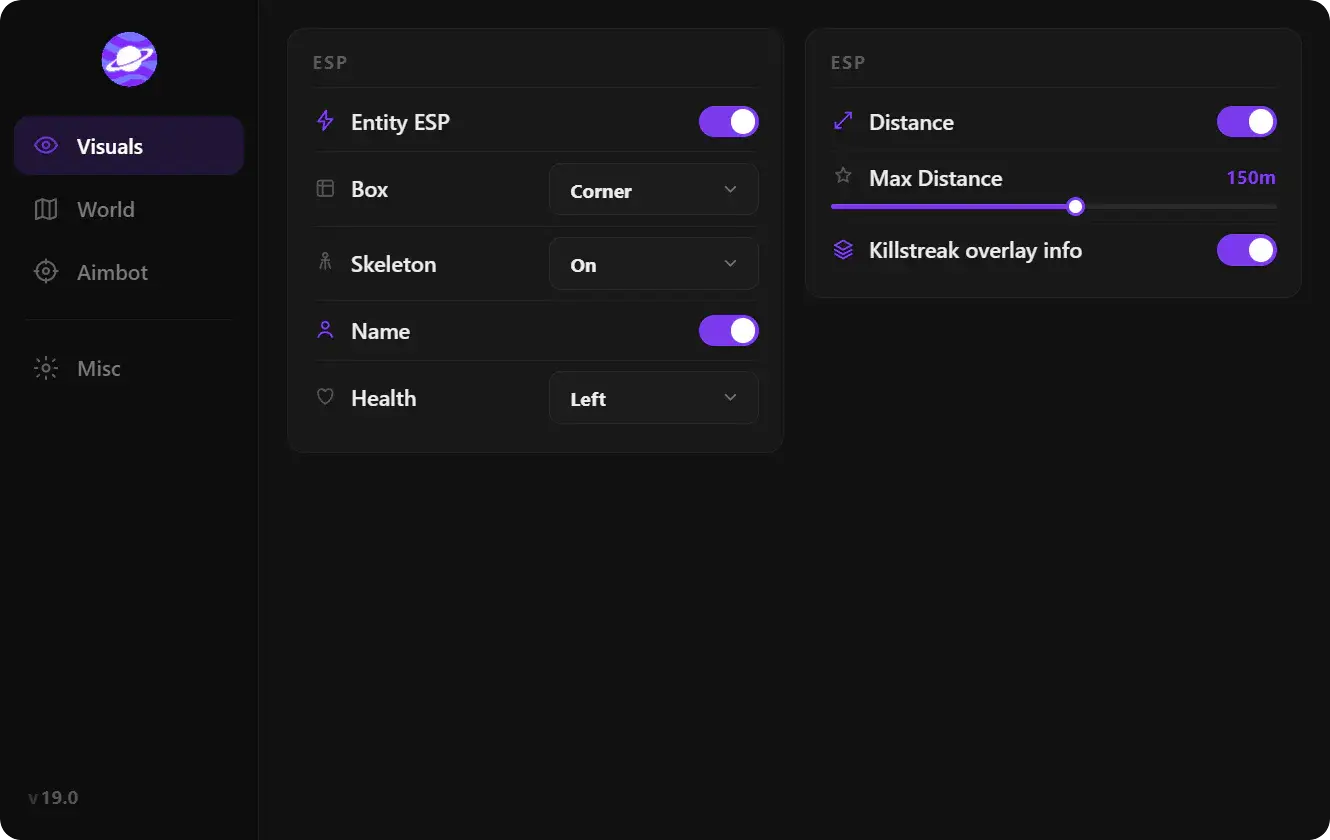
In TDM, enable Player ESP and moderate aimbot FOV. For S&D, tighten smoothing and lean on radar for rotations. In Combat Zone, lower skeleton detail and prioritize no recoil on your best beam weapon. Toggle stream-proof overlay before recording.
First match checklist
Join Deathmatch on Cargo or Drain. Confirm ESP boxes track enemies through a wall without stutter. Test killstreak indicator when you chain kills. Leave aimbot smoothing high enough that killcam replays do not look robotic. Log issues with patch numbers if something fails.
Deep DMA preparation
When HVCI stays on, follow each cloud DMA onboarding step in order: firmware, software agent, validation ping, then game attach. Skipping validation produces false negatives where menus appear but features never sync.
Record Secure Boot and TPM states in a text file before changing BIOS for troubleshooting. Restoring defaults is easier when you know prior values.
Config profiles worth saving
Export or photograph three profiles: TDM aggressive, S&D quiet, Combat Zone minimal. Switching modes from the game mode selector should include switching configs if the loader supports profiles.
After setup, run one full Combat Zone match to stress radar, ESP, and killstreak widgets under real zone damage—not just a one-minute Deathmatch spawn test.
Voice and overlay coexistence
Discord overlay hooks sometimes conflict with stream-proof paths. Disable experimental overlays on first launch, validate ESP, then re-enable one at a time if you need push-to-talk badges on screen.
FAQ
Do I need two monitors?
No. Overlay renders on the game display. A second monitor helps read docs while playing.
Can friends help me test?
Private lobbies or duo Deathmatch are fine for verifying ESP without public scrutiny.
Where is the product page?
Documentation lives at combatmastercheats/">https://combatmastercheats.net">combatmastercheats.net with the product path linked from navigation.